
Score a match from the QR code on the court wall
No app, no account. Scan, enter two names, pick a format, and the first point is two minutes away.
You do not need an app or an account. The QR code on the court wall opens SCRD in your phone's browser, already pointed at that court. Enter two names, pick a format, and you are scoring in about two minutes.
Before you start
- A phone with a camera and an internet connection. Club wifi or mobile data both work.
- Any recent browser. Safari, Chrome and Samsung Internet are all fine. There is nothing to install.
- No account. If you have one, pick your name from the list as it is typed in, or show your player QR, so the match lands on your record. A typed name is a guest.
1. Scan the code on the wall
- Open your phone's camera and point it at the QR code on the court wall or the court poster.
- Tap the link that appears. It opens app.scrd.au with the club and the court already chosen. Check the names under Club & Court at the top of the page.
- If the camera will not read the code, or your browser lands on a sign-in page instead, see the article on a QR code that will not scan.
2. Enter the players
Setup runs in three steps, shown along the top of the page: Players, then Match settings, then Review & Start. The first two have a Next button at the bottom, and Review & Start has Start Match!.
- Under Player Settings, type the first player's name. As you type, SCRD offers registered players whose home club is this one. Pick one to link them, so the result goes on their record.
- Not on the list? A player with an account can tap Scan Player QR and hold up the player QR from their profile, which links them in one step without typing. Only a player with no account should keep the typed name: they are a guest for this match.
- Do the same for the second player. Each player has a shirt colour; the court TV uses those colours to tell the two apart.
- Tap Next.
3. Choose the format
Under Game Settings, pick how the match is scored. Rally scoring is the default: every rally wins a point, first to 11, win by two, best of five. That is the standard professional rule and what most club nights use.
- Rally scoring (PAR): every rally scores. Set Points to win (11 or 15 are the usual choices) and Best of (3 or 5 are usual, 1 and 7 are there too). Win by 2 points? is ticked by default.
- Hand-in-hand-out: traditional 9 point scoring where only the server can score. At 8-8 SCRD asks the receiver to choose how long the game runs, Short or Long, and shows the target for each.
- Total of: a set number of games, every one of them played. Decided by settles it: the most points across all the games, or the most games won. Level either way is a draw.
- Player Handicap: switch it on to start each game from a handicap score instead of 0-0. See the handicap article for how the offsets work.
4. Start the match
- Tap Next to reach Review & Start. It lists both players, the scoring you picked and whether handicap is on.
- Scored by is optional and sits on this screen. Put in the name of whoever is holding the phone, so the match record says who refereed it.
- Tap Start Match!
- If both players are linked accounts and it is not a handicap match, SCRD asks Rank this match? Yes means the result counts towards both players' SquashLevels rating. No means it is still saved, but does not change anyone's level.
- Spin the racquet, then answer Select Initial Server: who serves first, and from the left or the right box.
5. Score the match
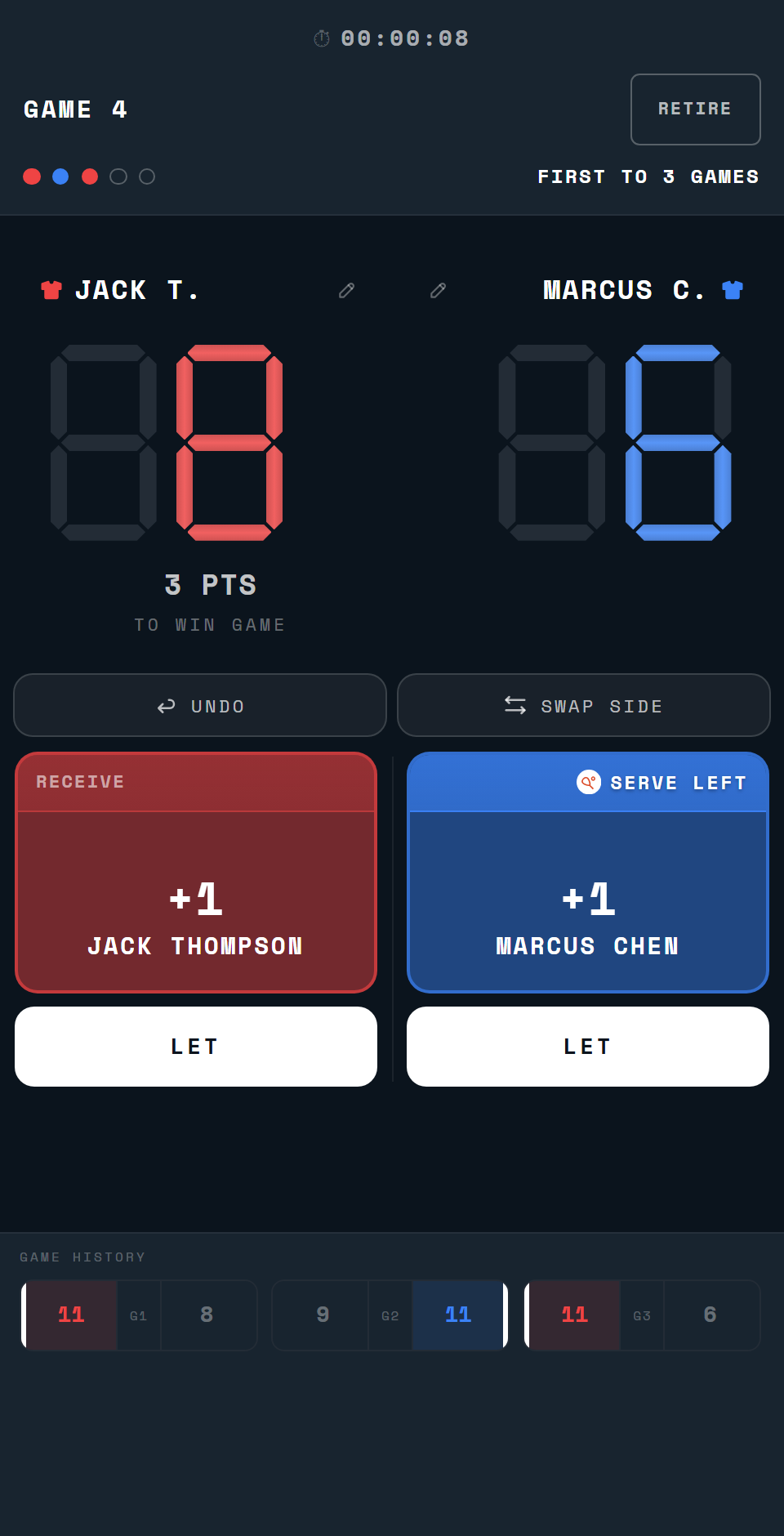
The referee screen shows both players and their scores. Tap the player who won the rally. SCRD adds the point, moves the serve, and shows GAME BALL under the player who is one point from winning the game, or MATCH BALL when that point would win the match. A Total of match never shows MATCH BALL, because every scheduled game is played whatever the score.
- The serve strip shows who is serving and from which box. If the server chooses the other box, tap SWAP SIDE.
- When a player asks for a let, tap the LET button under their scoring button and choose Stroke, Yes Let or No Let. SCRD applies the score and the serve for you.
- Tapped the wrong player, or made the wrong let call? The UNDO button takes back the last rally or let call. Do it before the next rally.
- Under hand-in-hand-out the receiver's button reads HAND OUT instead of +1: tap it when the receiver wins the rally, because the serve changes hands and no point is scored.
6. Between games
When a game ends you see Game Over. Tap Confirm & Start Interval and a two-minute countdown runs. The rules give two minutes before every game, the deciding game included.
- Both players ready early? Tap Start Now and play on.
- Need longer? Pause Timer holds it. Resume Timer starts it again.
- If the clock runs out, it turns red and keeps counting up. Tap Start Now and SCRD asks who was responsible for the delay: name a player, or choose Skip: do not record.
7. Finish
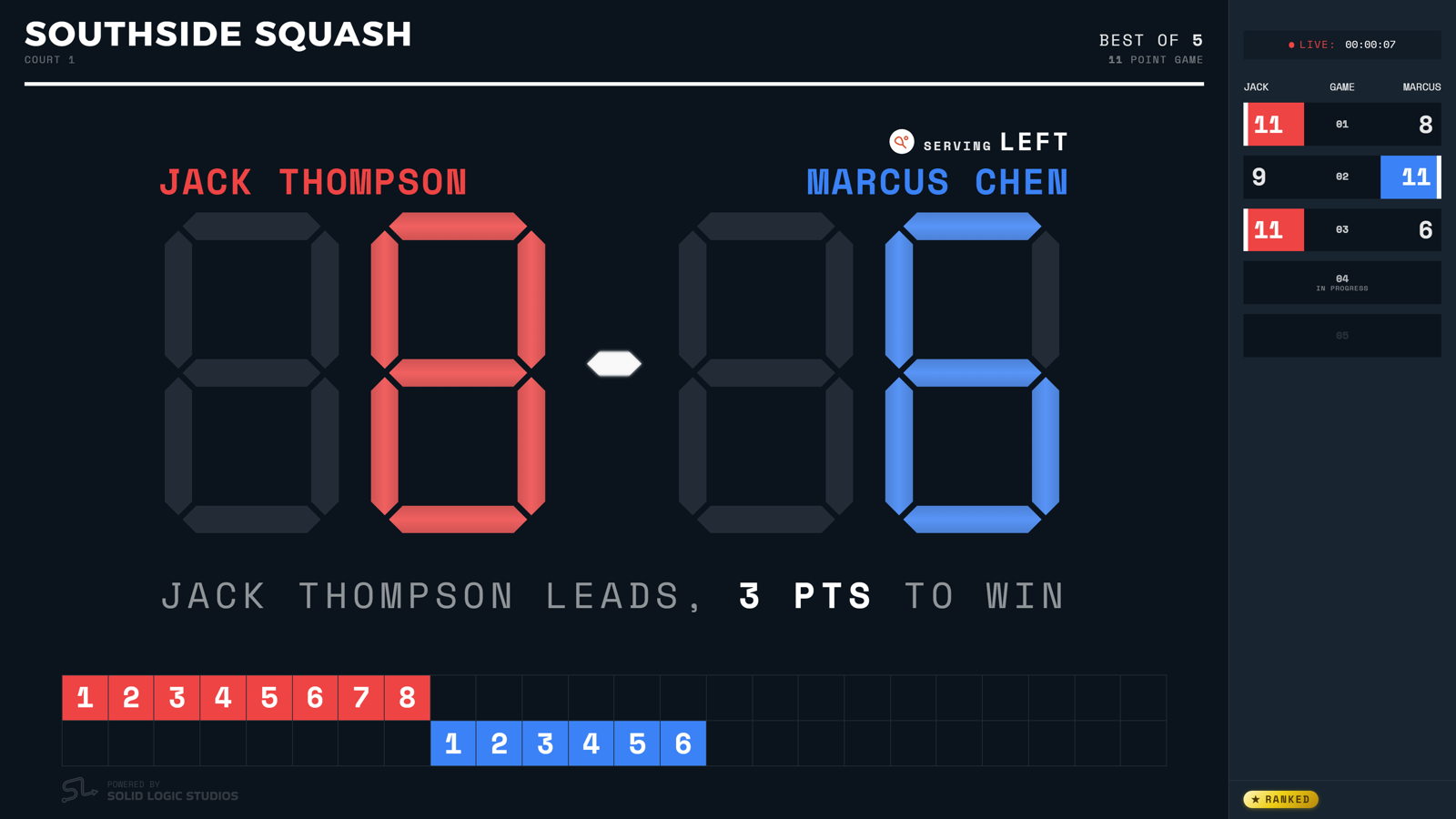
After the last game, Game Over asks you to confirm, and Finish match saves everything: every point, every let and the game scores. The match appears under History on this court's setup page and, for linked players, on their home screen and in their stats. The TV shows the result, then goes back to its between-matches screen.
Back to the court
Point your phone's camera at the code on the court wall or the court TV. It opens the setup page for that court.
Open app.scrd.au